Knowledge BaseDirectAdmin hostingInstalling WordPress and other apps (Softaculous)
Installing WordPress and other apps (Softaculous)
DirectAdmin hosting
25/10/2026
WordPress, Joomla, PrestaShop and hundreds of other apps install in a few clicks, without creating a database by hand.
In DirectAdmin open Extra Features → Softaculous Auto Installer (WordPress is also right on the dashboard under Softaculous Apps Installer).
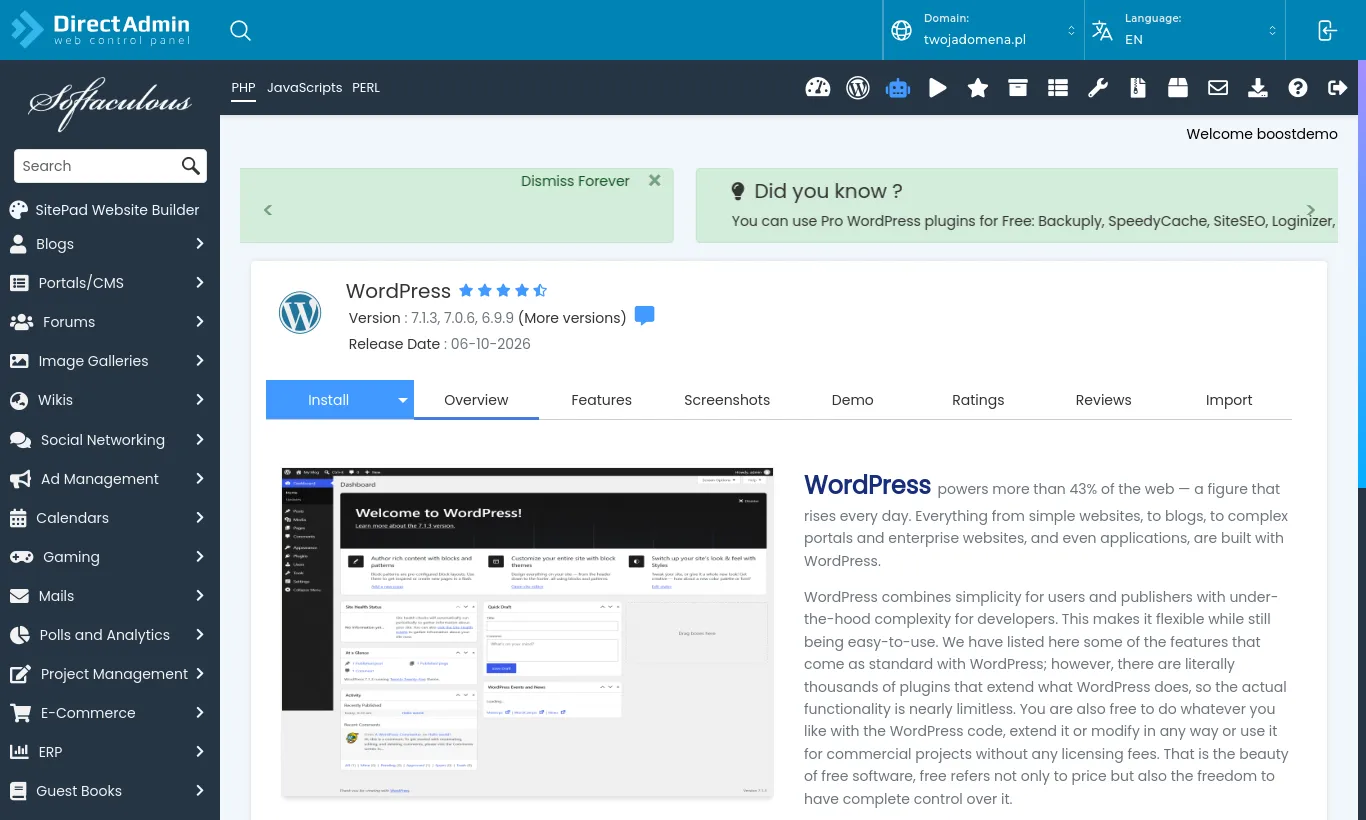
Choose the app, e.g. WordPress, and press Install.
WordPress in Softaculous
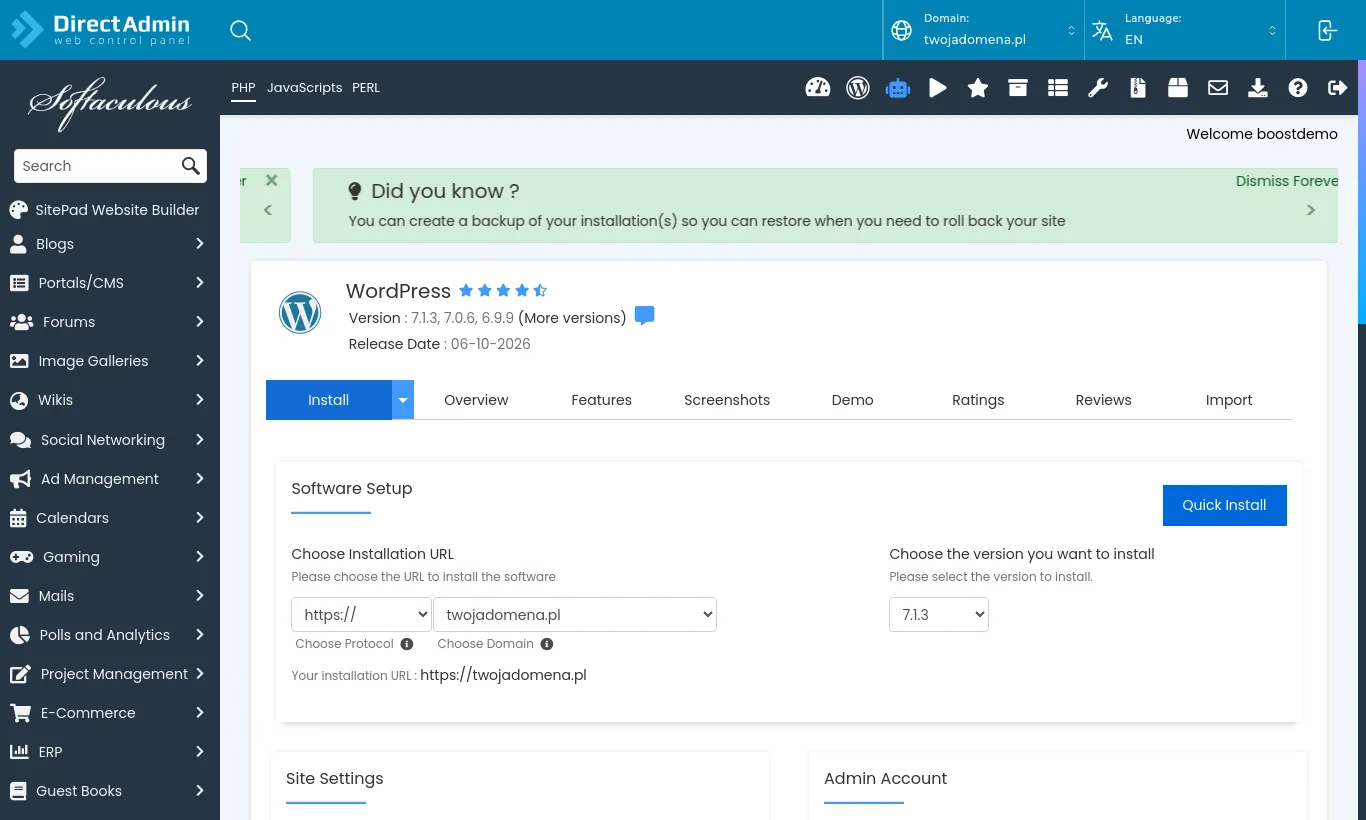
In the form choose the https:// protocol and your domain. Leave the directory empty for WordPress to run at the domain itself (e.g. yourdomain.com), or enter e.g. blog for yourdomain.com/blog.
Under Admin Account set the username, a strong password and the admin email. Do not use "admin" as the username.
Press Install at the bottom. A moment later you get links to the site and its dashboard.
The install form: installation URL, version, site settings and admin account
WordPress Manager
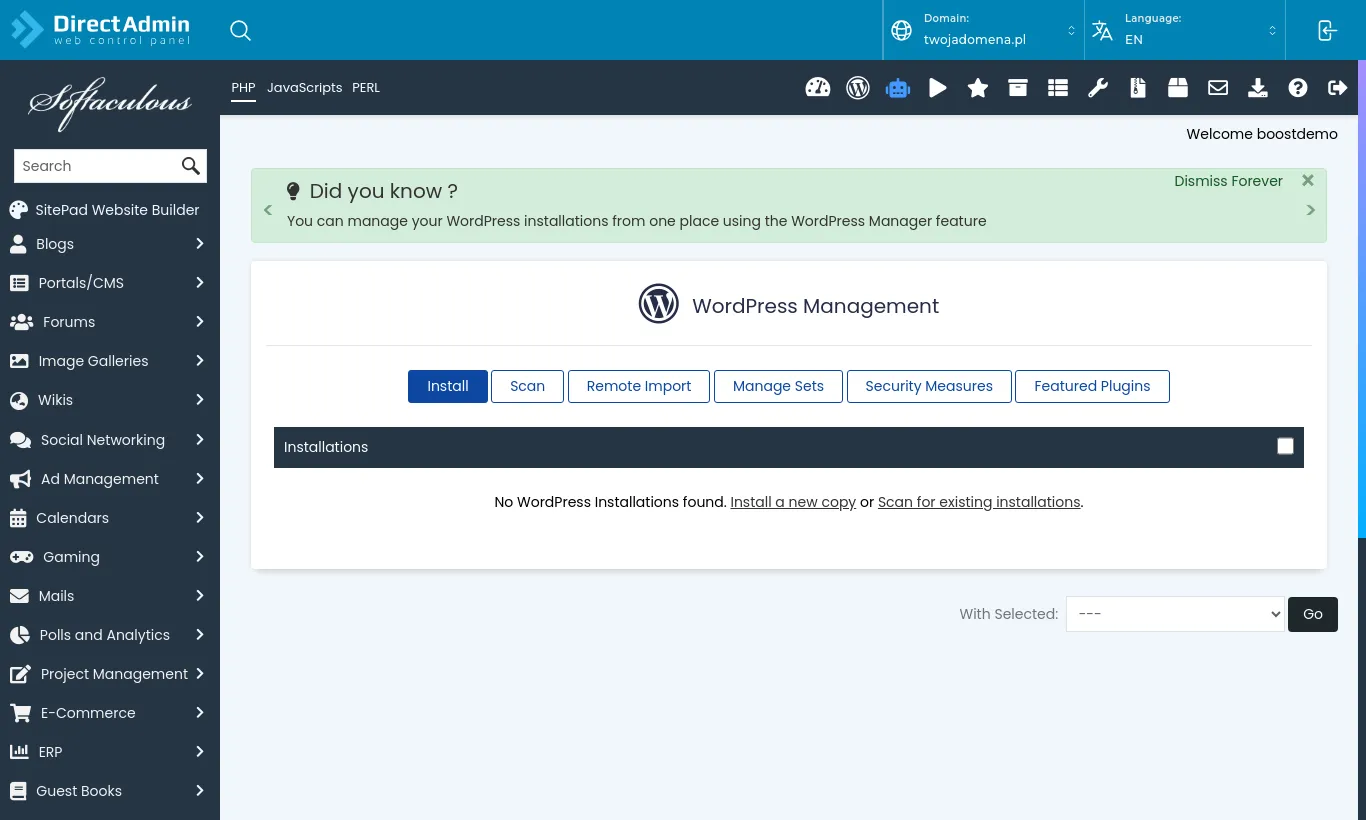
Extra Features → WordPress Manager by Softaculous gathers every WordPress install in one place. From there you turn on automatic updates, back up an install, clone the site to a staging subdomain or sign in to its dashboard with one click.
WordPress Manager - the list of installs
Before installing, make sure the domain already points to our server and has an SSL certificate (see the SSL certificates category). The site then runs on https:// from day one.