Knowledge BaseDirectAdmin hostingMySQL databases and phpMyAdmin
MySQL databases and phpMyAdmin
DirectAdmin hosting
25/10/2026
Most websites need a database (WordPress, shops, forums). Installing an app through Softaculous creates one for you. To create one by hand:
Open Account Manager → Databases.
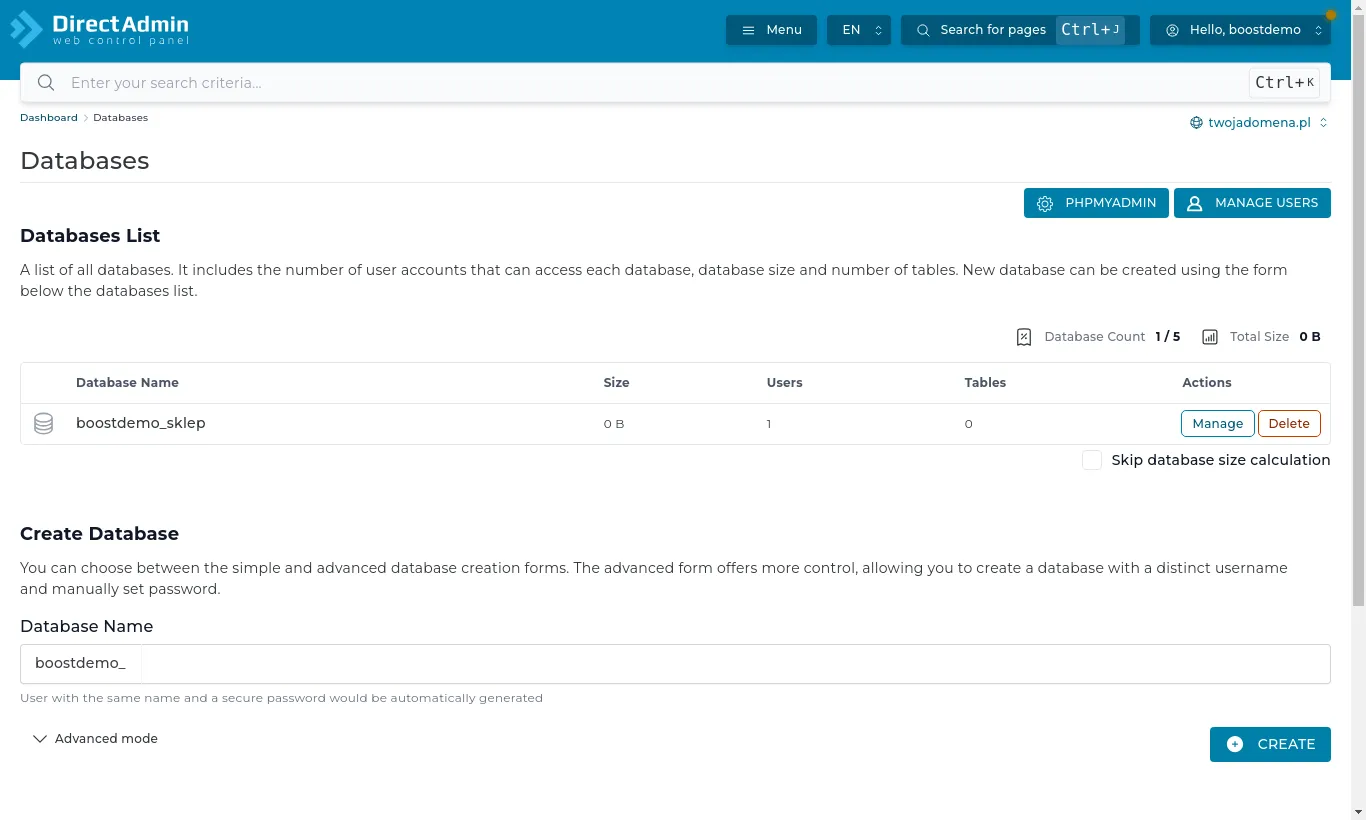
Under Create Database enter a name and press Create. The panel creates a database user straight away and generates a password - write it down.
Databases: the list of databases and the form for a new one
Database and user names always start with your hosting account name, e.g. boostdemo_shop. Enter them like that in your app's configuration.
Details for your app's configuration
Database host: localhost
Database name and user: as listed in the panel (with the account prefix).
Password: the one set at creation. Change it under Manage Users.
phpMyAdmin
The phpMyAdmin button on the databases page (or under Extra Features) opens a tool for browsing tables, running SQL and importing or exporting databases. To import a database from your old host: pick the database on the left, open the Import tab and choose the .sql file (a .gz archive works too).
Large databases (several hundred MB) are better moved through a support ticket - we import them on the server.